SmartCast - USB Screen Share
SwiftBiz AppsPersonalization
0.00.00 Reviews
- Version
- 1.0.7
- Installs
- 500.00K
- Age Rating
- Everyone
Screenshots
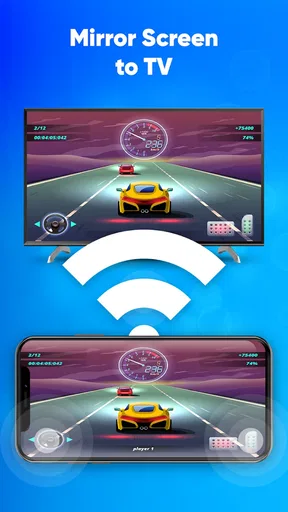
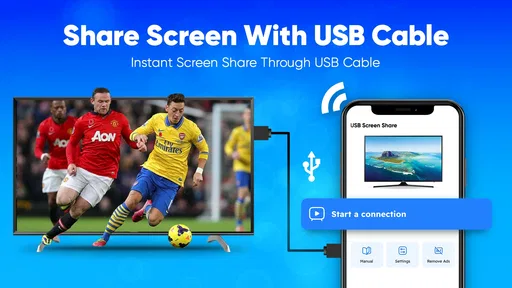
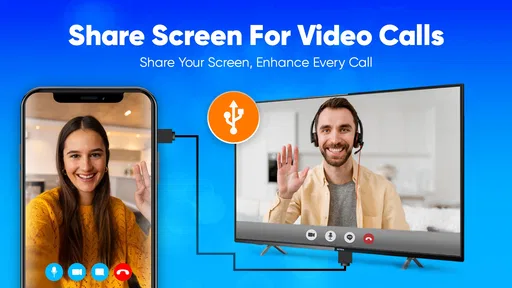
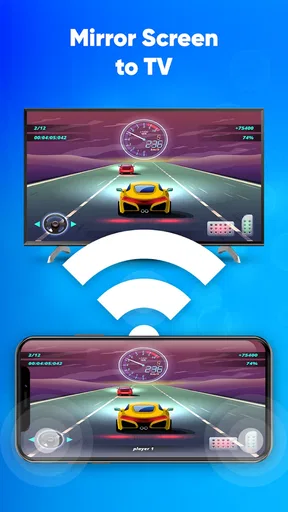
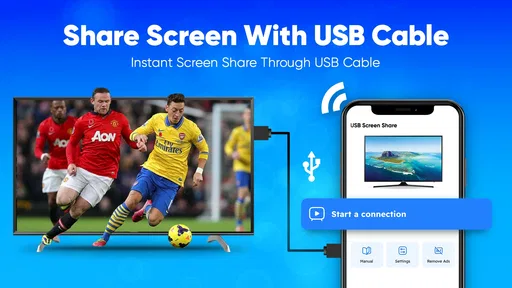
Our Review of SmartCast - USB Screen Share
 Analysis by Appyee
If you've ever wanted to mirror your phone's screen on a larger display without the fuss, SmartCast - USB Screen Share might just be the app to make it happen. I've taken it for a spin, and I’m here to spill the beans about my experience with it.
Where a cable changes the experience
The practical appeal of this app is easiest to understand when a wireless cast is not cooperating. A shared screen can be useful for showing photos to family, walking a colleague through something on your phone, or putting a mobile game on a television. A cable-based connection can be a sensible alternative when you would rather not rely on a wireless network, but it is not automatically the simplest route: your phone, cable, and receiving display still need to be compatible with the connection method.
That compatibility check is worth doing before you plan a presentation or a movie night. Look at the ports on both devices and confirm that the display can accept the kind of phone connection you intend to use. A USB cable does not make every television a screen receiver, and the app cannot remove hardware limits. I would test the setup at home first, rather than discover an adapter or display limitation when other people are waiting.
For a casual family use, I would keep the phone plugged in and put the content in place before mirroring. That avoids fumbling through albums while everyone watches and gives you a chance to check how notifications appear on the larger screen. If you are sharing personal photos or work material, a quick glance at incoming alerts and open apps is a small but useful privacy habit.
Getting Started with SmartCast
First things first, downloading SmartCast - USB Screen Share is as easy as pie. It’s available on both Android and iOS, and the installation process is pretty straightforward. Once you've got it up and running, the app greets you with a simple interface that doesn’t overwhelm you with options. Simplicity is the name of the game here.
The app is a free personalization tool from SwiftBiz Apps, and it has passed the half-million-install mark. It is rated for everyone, so its intended audience is broad rather than limited to a particular age group. The current version is 1.0.7, and it is listed for devices running Android 8.0 or later. Those details make it easier to judge whether it may fit an older phone, but the television and cable side of the setup still deserves its own compatibility check.
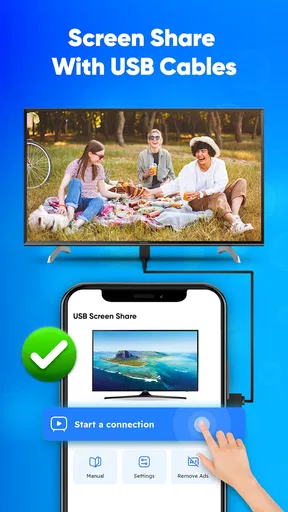
Connecting your device to a larger screen is done via a USB cable, which is a huge plus if you're someone like me who's worried about laggy wireless connections. The setup process is intuitive, guiding you through permissions and settings without a hitch. It’s like having a tech-savvy friend holding your hand through the process.
Features That Stand Out
Now, let’s talk about what makes this app tick. One of the most noteworthy features is that it supports high-definition mirroring. Whether you’re streaming your favorite shows or showing off vacation photos, the clarity is impressive.
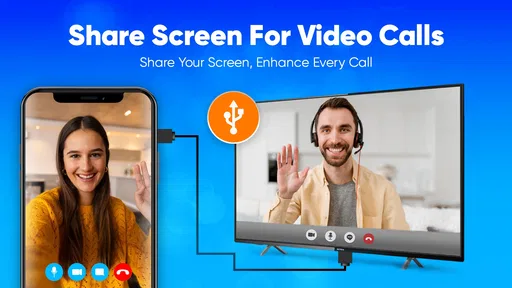
Another cool feature is the app's ability to mirror not just your screen, but also your phone’s audio. This is perfect for presentations, video calls, or even gaming on a bigger screen. Who doesn’t love a little surround sound action?
The app also provides a handy toolbar that lets you control various aspects of your mirrored screen, such as volume and display settings. It’s like having a remote control right at your fingertips.
Performance and Usability
In terms of performance, SmartCast delivers a smooth mirroring experience with minimal lag. The connection is stable, and the quality remains consistent even when you’re flipping through apps or playing videos. It’s reliable enough that I found myself using it for everything from work presentations to binge-watching sessions.
For an everyday example, imagine needing to show a travel itinerary on a hotel television. I would open the relevant pages before connecting, then check the screen for text size and legibility from the seating area. Small details that look clear on a phone may be harder to read across a room. This kind of quick test helps decide whether mirroring is the right tool or whether sending a document to a laptop and using the television as its display would be more comfortable.
There is also a useful trade-off between a direct connection and the freedom of wireless casting. A cable can reduce dependence on network conditions, but it keeps the phone physically tied to the display and may require the right adapter. Wireless options such as built-in casting can be more convenient when the television and phone already work well together. I would choose the wired route when a stable, local connection matters more than moving around freely, and use the television’s native casting tools when convenience is the priority.
Usability-wise, the app scores high. It’s designed for both tech enthusiasts and those who might not be as tech-savvy. The interface is intuitive, with easy-to-understand icons and options. Plus, the app doesn’t bog down your phone's performance, which is always a bonus in my book.
Choosing the right setup
Before relying on screen sharing for a meeting, I would run a short rehearsal with the exact phone, cable, and display. Confirm that the image appears, check whether audio comes through the intended speakers, and open the material you plan to show. This is more useful than testing only that the app launches: the real question is whether your full setup behaves as you need it to.
For presentations, prepare the phone as if it were going to be passed around. Close unrelated apps, silence alerts if appropriate, and keep the content ready at the point you want to show. Mirroring displays the phone’s activity rather than turning it into a separate presentation computer, so anything you navigate to can become part of what other people see. That makes the app handy for quick demonstrations, while a dedicated presentation setup can be better for a polished talk.
For gaming, the larger picture can be enjoyable, but I would not assume every title will feel equally responsive or look equally suited to a television. Games that rely on quick touch input still use the phone as the controller, and your eyes are now looking at a separate display. Try a slower-paced game before expecting the same comfort from a fast competitive one. If precise reaction timing is central, playing directly on the phone may remain the better choice.
Who will get the most from it
If you’re someone who frequently needs to share your screen for work or play, SmartCast can be a game-changer. The USB connection ensures a stable link, and the high-definition quality makes it perfect for professional settings or personal entertainment. Plus, the app's ability to handle both video and audio mirroring means you won’t miss out on any aspect of your phone’s capabilities.
For gamers, the app is a treat. Playing mobile games on a larger screen without any noticeable lag is a dream come true. And for those of us who use our phones for everything, having the ability to switch between apps and tasks seamlessly is a major win.
I would especially consider it if I often demonstrate something directly from my phone, share a clip with people in the same room, or prefer not to depend on a crowded or unavailable Wi-Fi network. Someone who already has a dependable wireless casting setup may not gain enough from adding another way to connect. Likewise, if the display cannot accept the phone’s output through the available hardware, choosing a compatible receiver or using a laptop as the bridge is more sensible than expecting an app to solve the mismatch.
One question people naturally have is whether “no Wi-Fi” means no setup concerns at all. It removes reliance on a Wi-Fi connection for the sharing path described by the app, but it does not guarantee that every phone and television can connect directly with any ordinary cable. I would check the devices and any necessary adapter before buying accessories or planning around the feature.
Another practical question is whether a cable is always better than wireless. Not for everyone. It can be a better fit when you want to avoid network dependence, but wireless casting wins for a room where you need to hold the phone or move away from the television. Choosing between them is less about one being universally superior and more about whether the priority is a direct connection or freedom of movement.
The app is free to download, while optional in-app purchases range from $4.99 to $14.99 per item. I would start with the free experience and decide whether any paid option is relevant to how I use it, rather than treating a purchase as a requirement for basic evaluation. That keeps the decision grounded in the actual job I need the app to do.
What its current version tells me
The published version number gives existing users a clear way to identify the app build they are using, but a version number by itself is not a release history. I would not read a specific new feature or performance improvement into 1.0.7 without a stated change record. For someone already using the app, the sensible approach is to judge the current build by the connection and controls available on their own devices, then check future release notes for concrete changes before expecting a different experience.
That distinction matters because screen mirroring depends on more than app software. A future update could refine the app, but compatibility with a particular phone, cable, or television is still part of the overall setup. If a connection works reliably now, I would test after an update before an important event; if it does not, I would first isolate whether the issue is the app, the cable path, or the receiving display instead of assuming an update alone will resolve it.
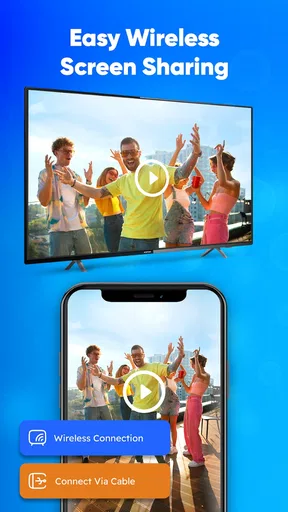
For a new user, the current state is straightforward: this is a phone-mirroring app centered on a cable-based option, with wireless sharing also described as part of its purpose. For an existing user, the useful question is whether the current version meets their everyday need, not whether a version label promises a particular evolution. I would watch for clear, specific release notes about compatibility and connection behavior, since those are the details most likely to change how practical the app feels.
Final Thoughts
To wrap it up, SmartCast - USB Screen Share is a solid choice if you’re looking for an easy, reliable way to mirror your smartphone screen to a larger display. The app offers a user-friendly experience and a robust set of features that cater to a wide range of needs. Whether for business or pleasure, it's a handy tool to have in your digital arsenal.
So, if you’re in the market for a screen sharing solution that won’t let you down, give SmartCast a whirl. With its hassle-free setup and impressive performance, it might just become one of your go-to apps for both work and play.
Verdict
Strengths of SmartCast - USB Screen Share
- Easy setup with clear instructions.
- Supports multiple file formats.
- High-quality video streaming.
- Stable connection with minimal lag.
- User-friendly interface for all ages.
Limitations of SmartCast - USB Screen Share
- Limited support for older devices.
- Occasional disconnects on weak Wi-Fi.
- Ads can be intrusive at times.
- Limited free version features.
- Requires a stable internet connection.
Other Releases by SwiftBiz Apps
View All
Document Reader PDF Reader
Productivity3.1

Recover Deleted Messages
Communication2.8
Similar Picks in This Category
View All
Microsoft SwiftKey AI Keyboard
SwiftKey4.3

Wallpapers
Google LLC4.1

Zedge™ Wallpapers & Ringtones
Zedge4.7

Yandex Browser with Alice AI
Direct Cursus Computer Systems Trading LLC4.3

Ringtone Maker:create ringtone
Big Bang Inc.4.7

Fonts Keyboard
Fonts Keyboard3.9
Frequently Asked Questions
What is SmartCast - USB Screen Share, and how does it work?
SmartCast - USB Screen Share is an application that allows users to mirror their smartphone screens to a larger display via a USB connection. This app is particularly useful for presentations, gaming, and video streaming. By connecting your device to a TV or computer, you can enjoy seamless screen sharing with minimal lag.
Is SmartCast - USB Screen Share compatible with all devices?
SmartCast supports most Android and iOS devices that have USB OTG (On-The-Go) capabilities. However, compatibility can vary based on your device's model and operating system version. It's recommended to check the app's compatibility list or contact support to ensure your device is supported before downloading.
What are the primary benefits of using SmartCast - USB Screen Share?
The main benefits include high-quality screen mirroring with low latency, which is ideal for gaming and video playback. The USB connection ensures a stable and reliable connection, unlike wireless options that might suffer from interference. Additionally, it's easy to set up and use, making it accessible for users of all tech levels.
Are there any limitations or drawbacks to using SmartCast - USB Screen Share?
While SmartCast offers a robust screen sharing solution, it requires a physical USB connection, which may limit mobility. Users must also ensure that their devices support USB OTG. Additionally, some advanced features might not be available on all devices, depending on hardware and software compatibility.
Does SmartCast - USB Screen Share require any special cables or adapters?
To use SmartCast, you'll need a compatible USB cable that connects your smartphone to the display device, such as a computer or TV. Depending on your device's ports, you may also need a USB OTG adapter. It's advisable to use quality cables to ensure a stable and reliable connection during screen sharing.
